Create an Encrypted Drive with Linux
A simple and easy guide for creating a fully encrypted drive with Linux.
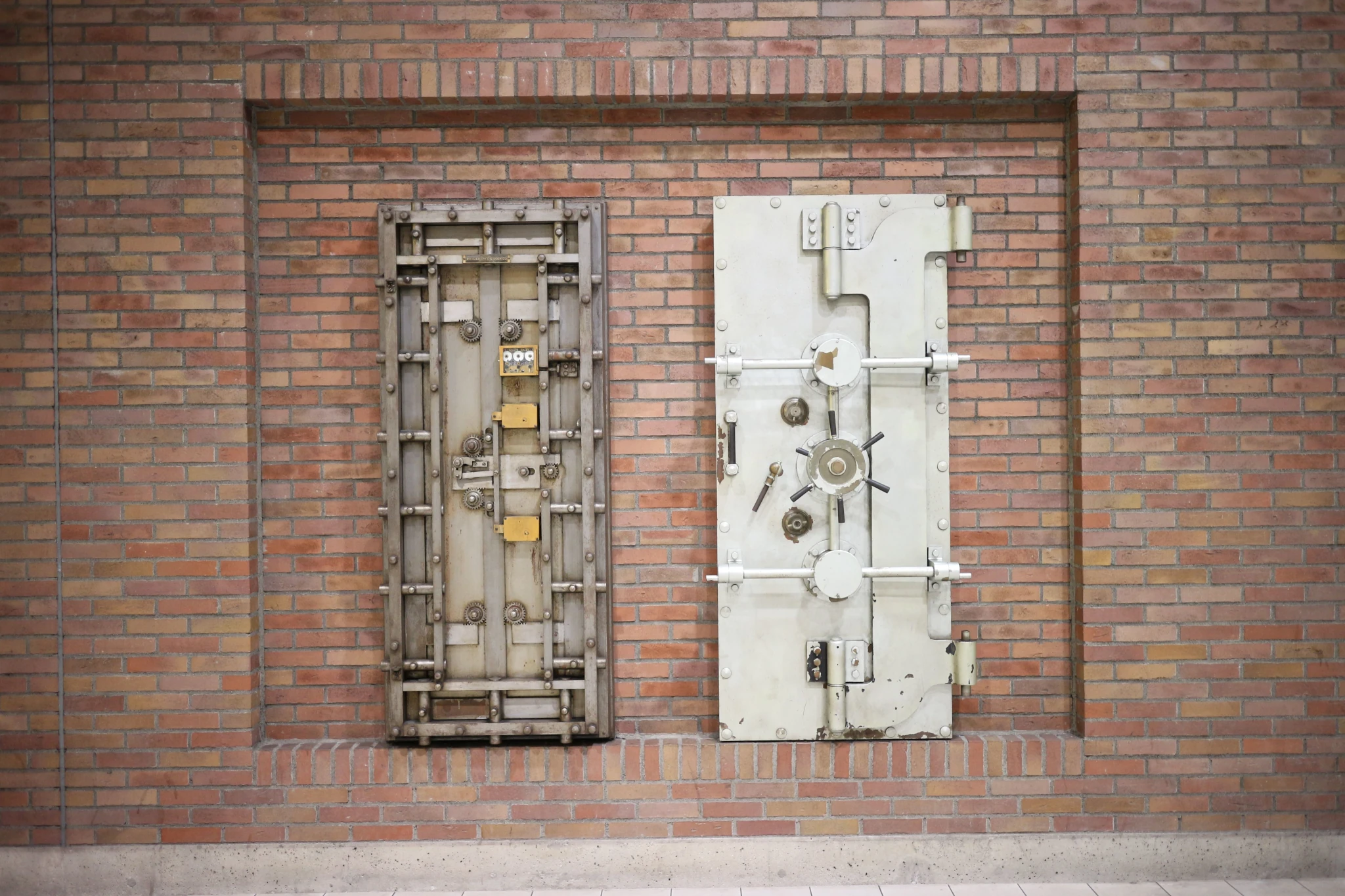
Whether it is an external USB drive or internal one, here is a quick way to create a fully encrypted drive with Linux.
This guide assumes the drive will only be used on Linux, so we’ll use LUKS. Cross-platform options like VeraCrypt exist, but they’re slower to encrypt/decrypt large drives.
Find the drive name
Find out the name of the drive you want to encrypt. With the drive plugged in, run the following command.
1

lsblk -o NAME,SIZE,MODEL,TRAN
Look for the SIZE and MODEL that match the drive you want to use. The name will be something like sdb or nvme0n1.
To confirm the drive name, you could unplug the drive and run the command above. If it is no longer listed, that is the drive. Remember to plug it in and run the command again. Your drive gets named when it is plugged in. It could be sdb this time but become sdc the next time you plug it in.
Configure the drive
Data removal! This step will result in a blank drive. Copy your data to another drive if you want to save it.
In the commands below, replace sdX with the name of your drive. Use a strong passphrase when asked to create one.
1
2
3
4

sudo cryptsetup luksFormat --type luks2 --label myBackupDrive /dev/sdX
sudo cryptsetup open /dev/sdX myBackupDrive
sudo mkfs.ext4 /dev/mapper/myBackupDrive
sudo cryptsetup close myBackupDrive
Once those commands finish, you can unplug your drive. The next time you plug it in, you will be prompted for the passphrase to decrypt it.
Image attribution
- Article thumbnail: Photo by wutthichai charoenburi.